
Your First Conversion
LinkCAD comes with a sample layout, so you can try a complete conversion before you open a file of your own. The sample converts from GDSII to DXF in five steps.
Start the Sample
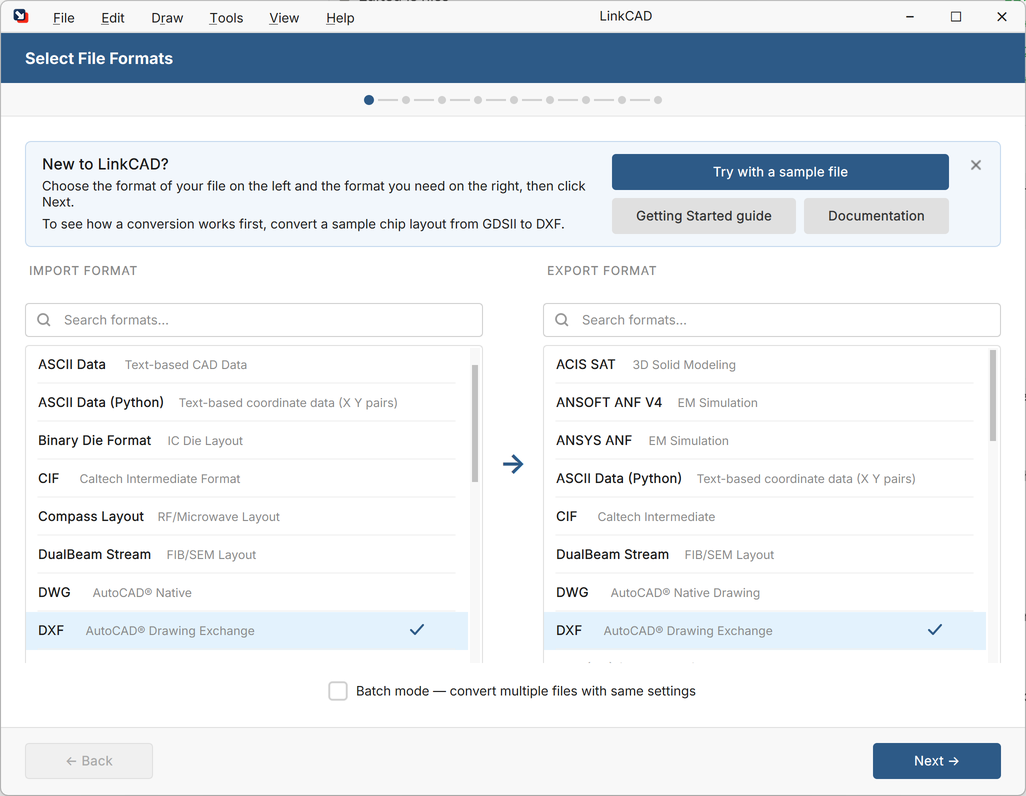
When you start LinkCAD for the first time, a New to LinkCAD? card appears above the format lists.
Click Try with a sample file. LinkCAD selects GDSII as the import format and DXF as the export format, and opens the sample. You do not need to choose a file.
The card also opens this guide (Getting Started guide) and the documentation for the current step (Documentation). Close it with ×. Once a conversion has finished, the card does not appear again.
Step 1 — Import Options
The import options control how LinkCAD reads the file, for example its units and which layers or cells it brings in. The defaults suit the sample. Click Next.
Step 2 — Export Options
The export options control how LinkCAD writes the DXF file, for example its units and how layers are named. Keep the defaults and click Next. LinkCAD reads the sample.
Step 3 — Review the File Structure
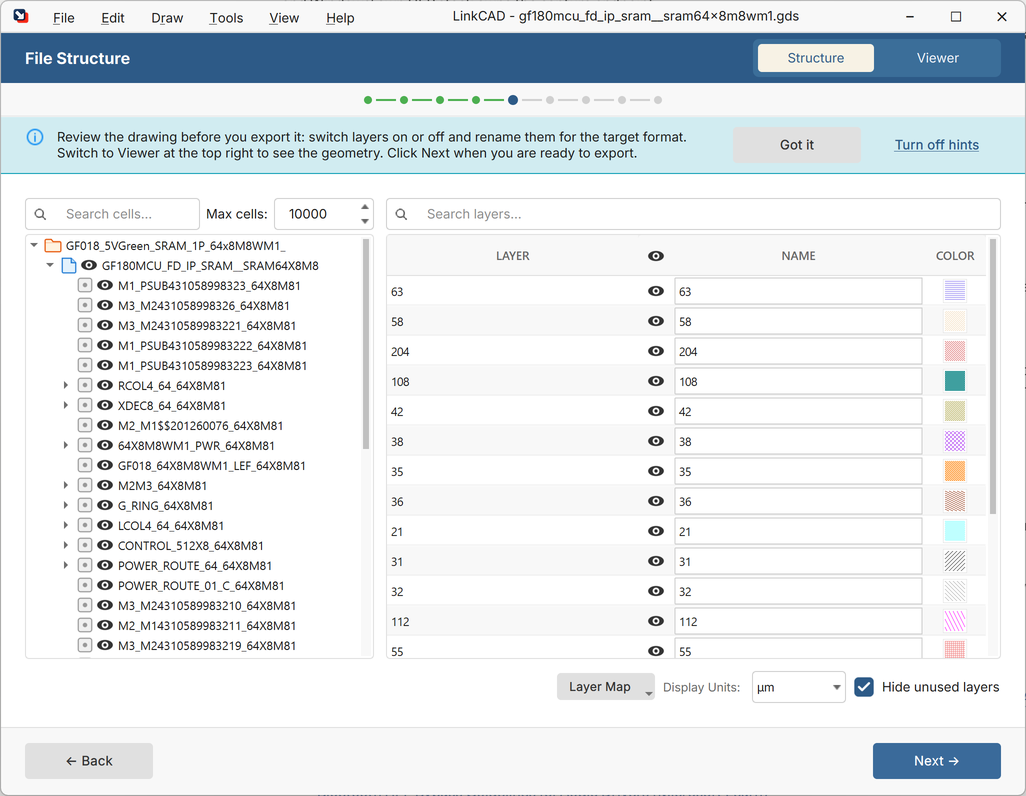
The File Structure page shows the cell hierarchy on the left and the layers on the right. The sample has 595 cells under one top cell and uses 18 layers.
- Click the eye icon next to a layer to leave it out of the export.
- Type in the Name column to rename a layer for the target format.
Click Viewer at the top right to see the geometry.
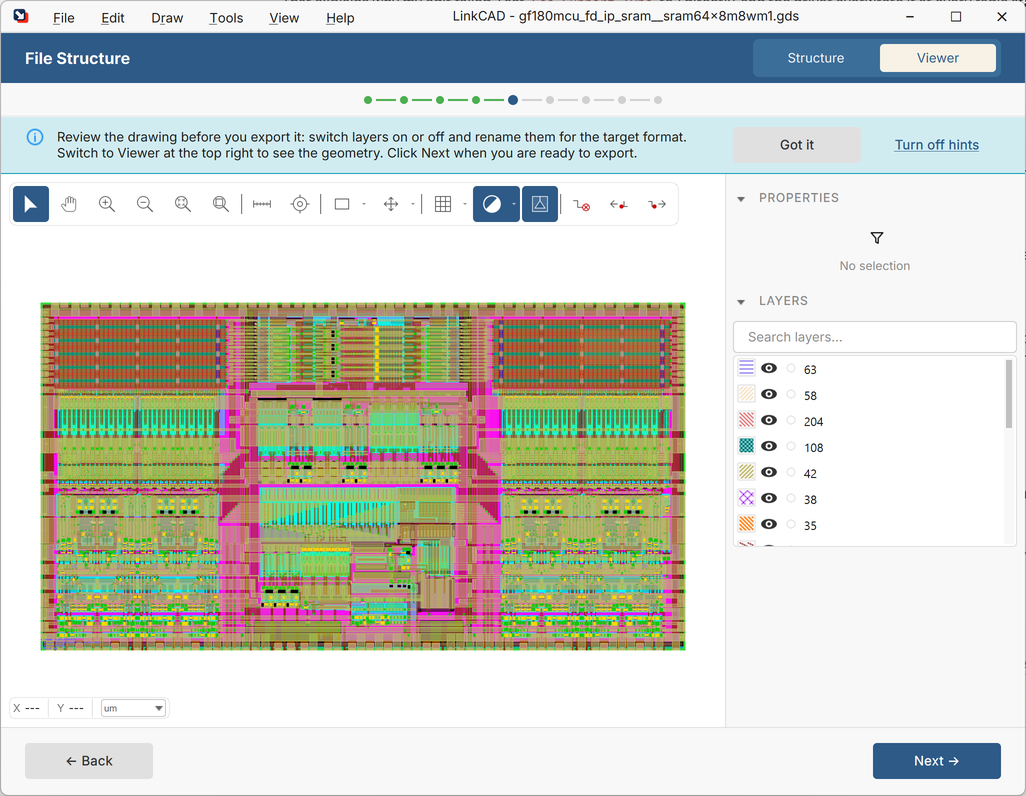
The sample is a small memory block: the two bit-cell arrays sit on the left and right, with the address decoder and control logic between them. See Zooming & Panning to explore it.
Click Next when you are ready to export.
Step 4 — Save the DXF File
Choose where to save the DXF file. LinkCAD proposes your Downloads folder. Click Save.
Step 5 — Review the Summary
The Conversion Complete page lists the formats, the output file and the number of layers and cells. Click Open Folder to find the DXF file, or Restart to convert a file of your own.
Guided Tour
For a guided run of the same conversion, click Guided tour on the card, or choose Help > Guided Tour. A bubble explains each step and highlights the control to use; the tour moves on only when you do what it asks. Press Esc or click Skip tour to end it at any time.
Hints
The first time each step appears, a short hint explains it. Click Got it to hide a hint for good, or Turn off hints to hide all of them. Tools > Options > General > Show hints for first-time users turns them back on.
About the Sample
The sample is a 64-word by 8-bit SRAM macro from the GlobalFoundries 180 nm MCU open source PDK, Copyright 2022 GlobalFoundries PDK Authors, licensed under the Apache License 2.0. Its notice and license text are in the samples folder.
What’s Next
- Quick Start — convert a file of your own
- The Conversion Workflow — every step in detail
- Working with Layers — map, filter, and rename layers